 By Marketing Automation Expert
 Most business owners sign up for GoHighLevel with the best intentions. They have heard it can replace five or six tools, automate follow-ups, and help them book more appointments without hiring extra staff. All of that is true, but only when the platform is set up correctly.
The problem is that most people open the dashboard and start clicking. They build a workflow before their phone number is verified. They send automated emails before their domain is authenticated. They create a pipeline that does not match how they actually sell. Weeks later, they wonder why their automations are broken and their emails are landing in spam.
At AutomateFlow, we have seen this exact pattern across hundreds of onboarding calls. The setup sequence matters. This guide walks you through it in the right order, backed by data on why each step directly affects your results.
How do you set up GoHighLevel for a small business?
Start by configuring your business profile and time zone, then connect your GHL phone number and authenticate your email domain. Build your sales pipeline stages, set up your booking calendar, import or connect your lead sources, and create your first instant-response workflow. Test everything before going live. Full setup typically takes 3–5 focused hours for core configuration, or 5–7 business days with a done-for-you specialist like AutomateFlow.
The Real Cost of a Slow or Broken Setup
Before we get into the steps, here is why this matters beyond just having a tidy dashboard.
Research shows that responding to leads within 5 minutes can increase your chances of converting them by up to 100 times compared to waiting 30 minutes. Additionally, 78% of customers buy from the first company that responds.
A Chili Piper benchmark study of 4 million form submissions found that instant response achieved a 66.7% meeting booking rate, compared to just 30% for standard follow-up.
GoHighLevel is built to solve exactly this problem, but if your setup is broken, it cannot fire automations in time. A misconfigured phone number, an unauthenticated email domain, or a workflow with the wrong trigger means you are still losing leads even while paying for a platform designed to capture them.
In our experience at AutomateFlow, the businesses that struggle most with GHL are not the ones that lack good leads. They are the ones who launched before their system was ready. Today, only 50% of businesses with fewer than 10 employees use a CRM. If you are reading this, you are already ahead. Now, let us make sure your CRM and lead management setup actually works.
Further reading: Customer Relationship Management Wikipedia | Marketing Automation Wikipedia
This guide is written by the AutomateFlow team — certified GoHighLevel specialists with 5+ years of experience and over 300 GHL builds across healthcare, real estate, home services, fitness, coaching, and more. Every step below reflects what we do on every client build, not a generic walkthrough pulled from GHL’s help docs.
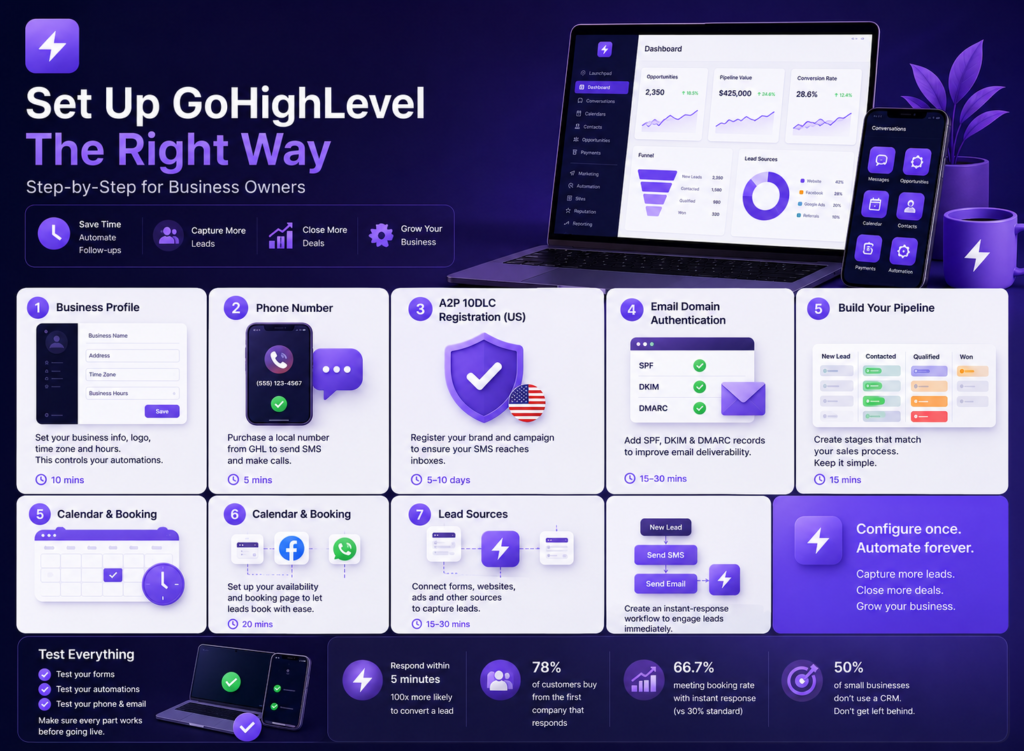
Step 1: Set Up Your Business Profile (Do This First, Always)
Go to Settings Business Profile, and fill in every field before touching anything else.
Your business name, address, time zone, and logo feed directly into your automated messages and email footers. If your time zone is wrong, your follow-up SMS will fire at 3 AM. If your address is missing, your emails will fail CAN-SPAM compliance checks.
Set your business hours too. This controls when time-sensitive automations are allowed to fire important if you do not want a new lead receiving a booking confirmation at midnight.
This step takes ten minutes. On every AutomateFlow client build, it is the very first thing we do before a single workflow is touched. Do not skip it.
If you would rather have this done correctly the first time, see how our GoHighLevel setup service works.
Step 2: Connect Your GHL Phone Number
Go to Settings Phone Numbers Add Number, and purchase a local number with your area code.
GoHighLevel uses its own phone infrastructure (LC Phone) for all SMS and calling. You cannot use a personal mobile number for automation. Every automated text in your workflows, lead responses, appointment reminders, and automated follow-ups go through this number.
For US businesses: A2P 10DLC Registration is mandatory.
A2P 10DLC is the US carrier compliance framework for business SMS. Without it, your messages will be filtered or blocked entirely before they reach your leads. Register under Settings Phone Numbers A2P Registration using your legal business name, EIN, website, and sample message templates.
Registration takes 5–10 business days. At AutomateFlow, we start this on day one of every US client build before we write a single automation because there is no workaround for the wait time.
Outside the US, registration is not required in most countries. Purchase your number, and you are ready to send.
Step 3: Authenticate Your Email Domain
This single step has more impact on your email open rates than any subject line you will ever write.
Go to Settings, Email Services, Add Sending Domain, and enter your business domain. GHL will generate three DNS records: SPF, DKIM, and DMARC that you need to add to your domain registrar (GoDaddy, Namecheap, Cloudflare, etc.).
- SPF tells email providers that GoHighLevel is authorised to send on your behalf
- DKIM is a digital signature that verifies your emails are genuine
- DMARC sets the policy for how unauthenticated emails from your domain are handled
Once all three records are added and verified, your automated emails will be sent from your own domain address (hello@yourbusiness.com) rather than a generic platform address. This dramatically improves deliverability and trust.
Ready to Automate Your Business?
Book a free 30-minute strategy call. We'll audit your GHL setup and build a custom roadmap — completely free.
Get Your Free Audit →Verification takes 15–30 minutes. Without it, your emails go to spam. It is that simple. This is one of the first things the AutomateFlow team audits when a client comes to us with a broken GHL account, and it is wrong more often than you would expect.
Skipping email authentication is one of the most common reasons GHL setups fail from day one. Get it right before you build anything else.
Step 4: Build Your Sales Pipeline
Go to CRM Pipeline,s Create Pipeline, and build stages that reflect your actual sales process, ss not a generic template.
Think through what happens from the moment a lead contacts you to the moment they pay. Every meaningful step in that journey should be a pipeline stage. For a home services business, it might look like: New Lead Contacted Quote Sent Booked Job Complete Won / Lost. For a healthcare clinic, it might be: New Enquiry Consultation, Booked Treatment, Proposed Active Patient.
Why does this matter so much? Because your pipeline stages are what trigger your automations. When a deal moves from “New Lead” to “Contacted,” a workflow fires. When a deal sits in “Proposal Sent” for more than five days without moving, a follow-up alert fires. If your stages do not match your real process, your automations fire at the wrong time or not at all.
Across 300+ builds, the AutomateFlow team has learned that no two pipelines are the same. A dental clinic’s pipeline looks nothing like a real estate agent’s. This is why we always map your actual sales journey before touching GHL cookie-cutter pipelines, which produce cookie-cutter (read: broken) automations.
This is the foundation of funnel and pipeline automation, and it only works when the pipeline mirrors how you actually sell.
Name each stage clearly. “Stage 1” tells you nothing at 9 PM when you are checking your dashboard on your phone.
Step 5: Configure Your Booking Calendar
Go to Calendars, Create Calendar, and configure your availability, appointment duration, buffer time, and confirmation settings.
The calendar is the destination of most of your automations. Lead nurture sequences end with a booking link. AI agents qualify leads and send a booking link. Appointment reminders fire based on calendar events. None of this works if your calendar is not set up first.
Add your working hours, block out unavailable dates, set a minimum notice period (so leads cannot book one hour from now when you are in the middle of a job), and configure your confirmation and reminder messages. Connect your Google or Outlook calendar to avoid double bookings.
Once live, your calendar gives you a shareable link you can embed in landing pages, include in emails, and trigger automatically inside workflows. In our builds at AutomateFlow, the calendar configuration is always completed before we write a single nurture sequence because the booking link is the destination every automation is pointing toward. See how our appointment booking automation service handles this end-to-end.
Step 6: Connect Your Lead Sources
Your automations can only fire when a lead enters your CRM. For that to happen automatically, your lead sources need to be connected.
- Website form: Build a native GHL form or embed one on your existing website. Every submission creates a contact record instantly.
- Facebook Lead Ads: Connect under Settings → Integrations → Facebook. Select the lead ad forms you want to sync. Every new Facebook lead appears in GHL automatically, tagged by campaign. For more complex ad-to-CRM flows, Make integrations with GoHighLevel give you full flexibility.
- Google Ads: Connect via the GHL Google Ads integration or use a webhook from your lead capture page.
- Inbound calls: Any call to your GHL phone number creates a contact record automatically if the caller is not already in your system.
- Third-party tools: If you use external platforms like Typeform, Calendly, or Stripe, connect them to GHL in real time using webhook integration so no lead ever falls through the cracks.
One thing we consistently find at AutomateFlow is that businesses underestimate how many lead sources they actually have. A website form is obvious. But missed calls, Facebook DMs, and Google Ads clicks often go untracked until they are properly wired into GHL. Getting all sources connected means no lead ever enters your business without being captured in your CRM and enrolled in the right automation.
Step 7: Build Your First Workflow
With your account configured, go to Automation Workflows, Create Workflow, and build your instant lead response.
Set the trigger to Contact Created. Add these actions in order:
- Send SMS: Personalised message using {{contact.first_name}}, sent immediately
- Send Email: Confirmation with your services and a booking link
- Add Tag: Tag the lead with their source (e.g., “Facebook-Ad” or “Website-Form”)
- Assign to User: Route to the right team member
- Add to Pipeline: Move to your first pipeline stage (New Lead)
Save, publish, and test it using your own details. Submit your contact form and check that the SMS arrives within 60 seconds and the email lands in your inbox (not spam).
This is the baseline workflow AutomateFlow deploys on every single client build, regardless of industry or complexity. It is the foundation on which everything else is layered.
For businesses that want to go further, AI and workflow automations with GoHighLevel add intelligent branching, conditional logic, and AI-powered responses on top of this foundation. You can also layer in an AI Chat Agent to engage leads on your website the moment they land — before they ever fill out a form.
Industry data from Hatch’s analysis of 132,188 speed-to-lead campaigns found that 88% of businesses take longer than 5 minutes to reply to a new lead, with the most common response time being one full day. Your instant response workflow puts you in the top 12% from day one.
Step 8: Test Before You Go Live
Before a single real lead comes through, test every element:
- Submit your own contact form, and confirm that the contact is created correctly
- Confirm SMS arrives within 60 seconds
- Confirm email arrives in the inbox, not spam
- Book a test appointment — confirm confirmation messages fire
- Check pipeline stage updates correctly
- Verify tags are applied as expected
At AutomateFlow, we run a full QA checklist on every build before handing it over to the client. No exceptions because a broken automation firing on a real lead is far harder to fix than one caught in testing. This step takes 20 minutes and saves you from sending broken messages to real leads.
Common Mistakes That Break GHL Setups
Skipping A2P registration. Your SMS messages will be blocked. This is the number one reason US businesses see zero SMS delivery after launch, and it is one of the first things we check in an AutomateFlow audit.
Join Hundreds of Businesses Running on Autopilot
From lead capture to follow-up — we build the full GHL system so you can focus on delivering results, not chasing them.
See How It Works →Not authenticating the email domain. Automated emails go straight to spam. No open rates, no clicks, no conversions.
Building workflows before configuring phone and email. The workflow will fire, but the messages will not be delivered. Always configure communication channels first. This is covered in full in our GoHighLevel setup service.
Wrong time zone. Your follow-ups fire at the wrong time. Leads receive a marketing SMS at 2 AM. Bad for conversions, worse for your reputation.
Generic pipeline stage names. You cannot manage what you cannot clearly see. Name your stages after real steps in your sales process. Read more about how pipeline and funnel automation work in practice.
Not nurturing leads long enough. Most businesses follow up once or twice and give up. Across our 300+ builds, AutomateFlow has found that 20–30% of monthly booked appointments come from leads captured weeks earlier, people who never would have converted without a proper follow-up sequence in place. Lead nurturing systems built in GoHighLevel follow up automatically for 14–30 days, converting leads you would otherwise have lost.
Frequently Asked Questions
Do I need technical skills to set up GoHighLevel?
The core steps, business profile, pipeline, and calendar are straightforward. The technical parts are email DNS authentication and A2P registration, both of which require access to your domain settings and some patience. Most business owners can handle it with this guide. If you would rather spend your time on your business, a done-for-you GoHighLevel setup with AutomateFlow is a better investment.
Can I set up GoHighLevel if I already have a half-built account?
Yes. At AutomateFlow, a 30–60 minute audit tells us exactly what is configured correctly, what is broken, and what is missing. We build on top of existing setups regularly.
What industries work best with GoHighLevel?
Any service business that relies on leads and appointments, including healthcare, dental, home services, fitness, real estate, coaching, legal, cleaning, restaurants, property management, and more.
What else can I automate once the basics are set up?
Once your core setup is live, most AutomateFlow clients add AI calling agents to handle inbound leads 24/7, Airtable database automation for structured job or client data, and Make integrations to connect GHL to every other tool in their business.
Further Reading
- What Is GoHighLevel Automation and Why Does It Matter?
- 5 GoHighLevel Automations That Run Your Business
Ready to Get Set Up Correctly?
A properly configured GoHighLevel account is the difference between a platform that runs your business and a dashboard that collects dust.
At AutomateFlow, we are certified GoHighLevel specialists who have built complete automation systems for 300+ service businesses across healthcare, real estate, home services, professional services, fitness and wellness, and more. We take you from strategy call to live system in 5–7 business days, no long-term contracts, no guesswork, full post-launch support included.
